.png)
Choose Your Email Sender Name and Address
The “From” name and email address control what recipients see when emails are sent from your account. Setting this correctly helps improve trust, recognition, and email deliverability.
Why this matters
- Recipients immediately recognize who the email is from
- Emails are less likely to be marked as spam
- Replies go to the correct inbox
How to update your “From” name and email
- From the left sidebar, click Settings
- Open Email Services
- Navigate to Dedicated Domain (this is your marketing domain)
- Click on the 3 Dots Next to your domain
- Select Set Headers
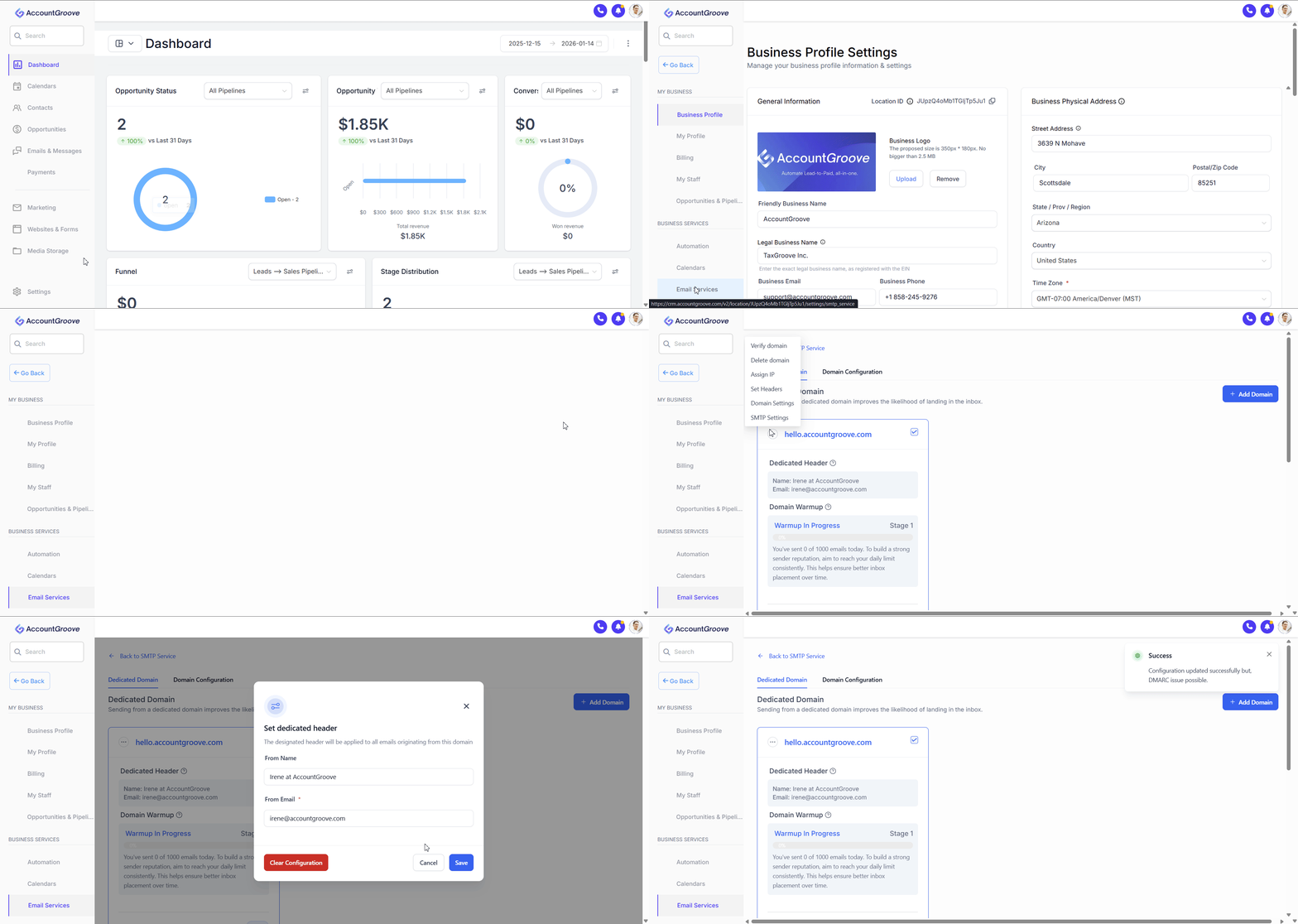
From Name: Your Name that clients would expect to see
Example: (Your Name) at (Your Business) Irene at AccountGroove
This is what your email recipient will see the email is sent from.
Important: Even though the "Sent From” address uses your main domain, emails are "Sent Via" your marketing subdomain to help protect your primary domain.
From Email: Your main email (domain) that you send your opperational emails from
Example: (Your name @ your businessname.com) irene@accountgroove.com
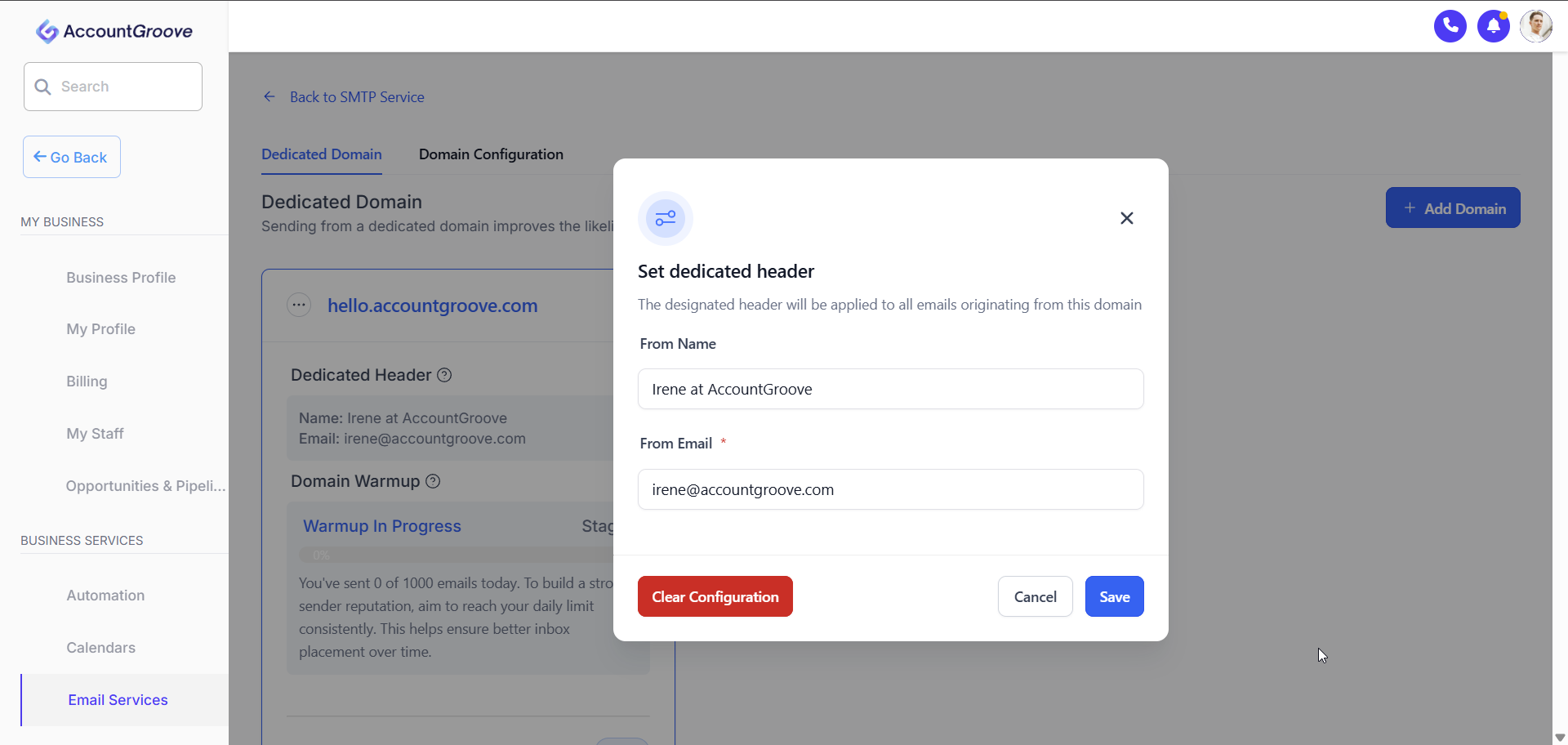
- Click Save to apply your changes
Thats its now you are ready to send marekting emails!
Best practices
- Add the From Email to match you subdomain (don't add a seperate unrelated email)
- Avoid generic or no-reply addresses when possible
- Keep your From name consistent across campaigns and messages
Once saved, all future emails sent from AccountGroove will use these settings.
Domain Configurations
Next to the Dedicated Domain select Domain Configuration
In the dropdown select the marketing domain created for you
Domain Configuration Settings
Domain Configuration controls which branded domain is used when AccountGroove sends different types of emails on your behalf.
Before you begin
Your marketing domain is created and configured by the AccountGroove team during implementation. You do not need to create a domain yourself.
Access Domain Configuration
- Next to the Dedicated Domain open the Domain Configuration tab
Note: Your marketing domain is created and configured by the AccountGroove team during implementation. You do not need to create a domain yourself.

Repeat this for all the dropdowns and disregard these fields.

Disregard these fields