.png)
Customize your Business Settings
Business settings control how your company appears in AccountGroove and are used for compliance, communication verification, and system configuration. It’s important that this information is entered accurately.
Before you begin
Make sure the information you enter matches your legal business details exactly, as shown on your tax filings. This information is used for communication and verification purposes.
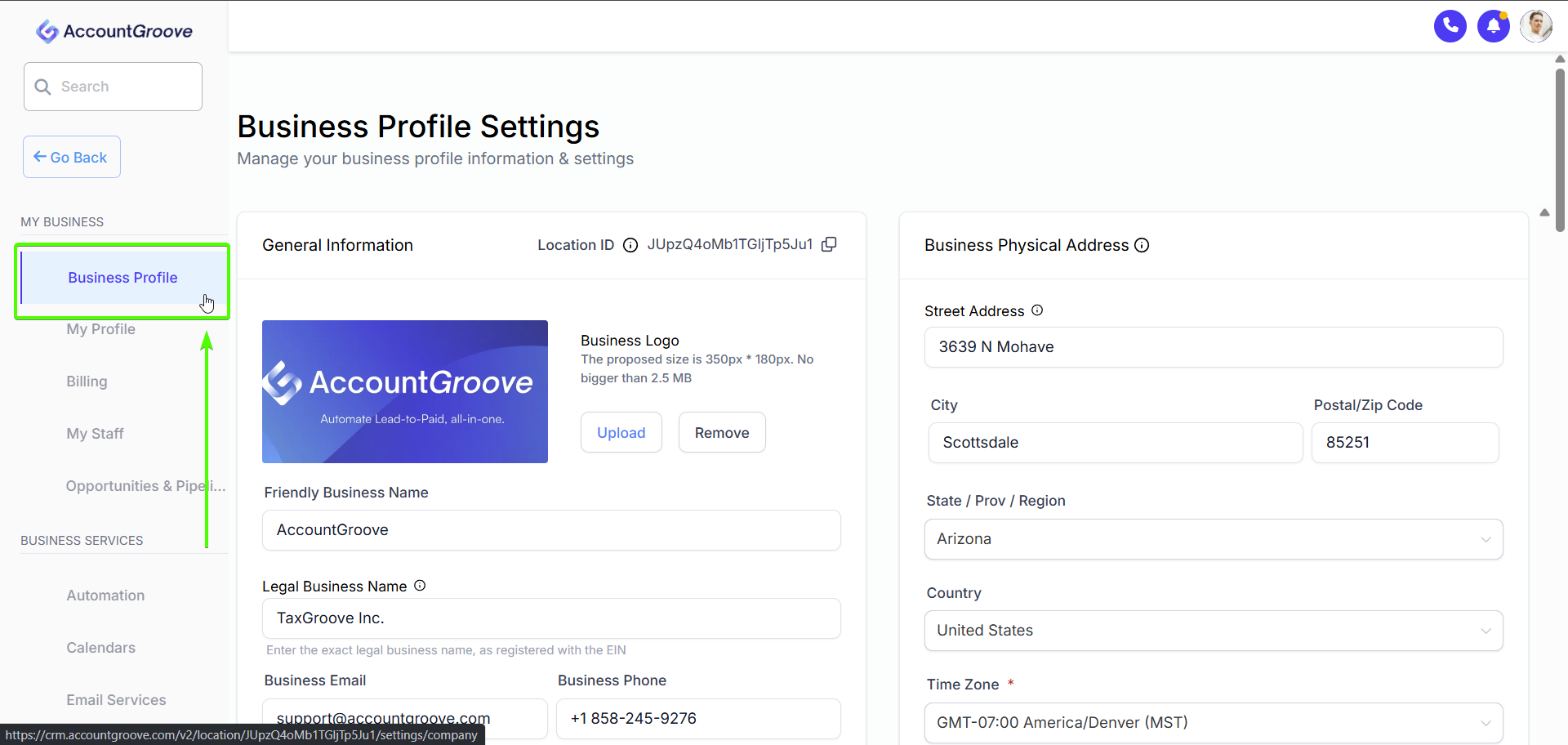
Access Business Settings
- From the left-hand menu, at the bottom click Settings
- Select Business Profile

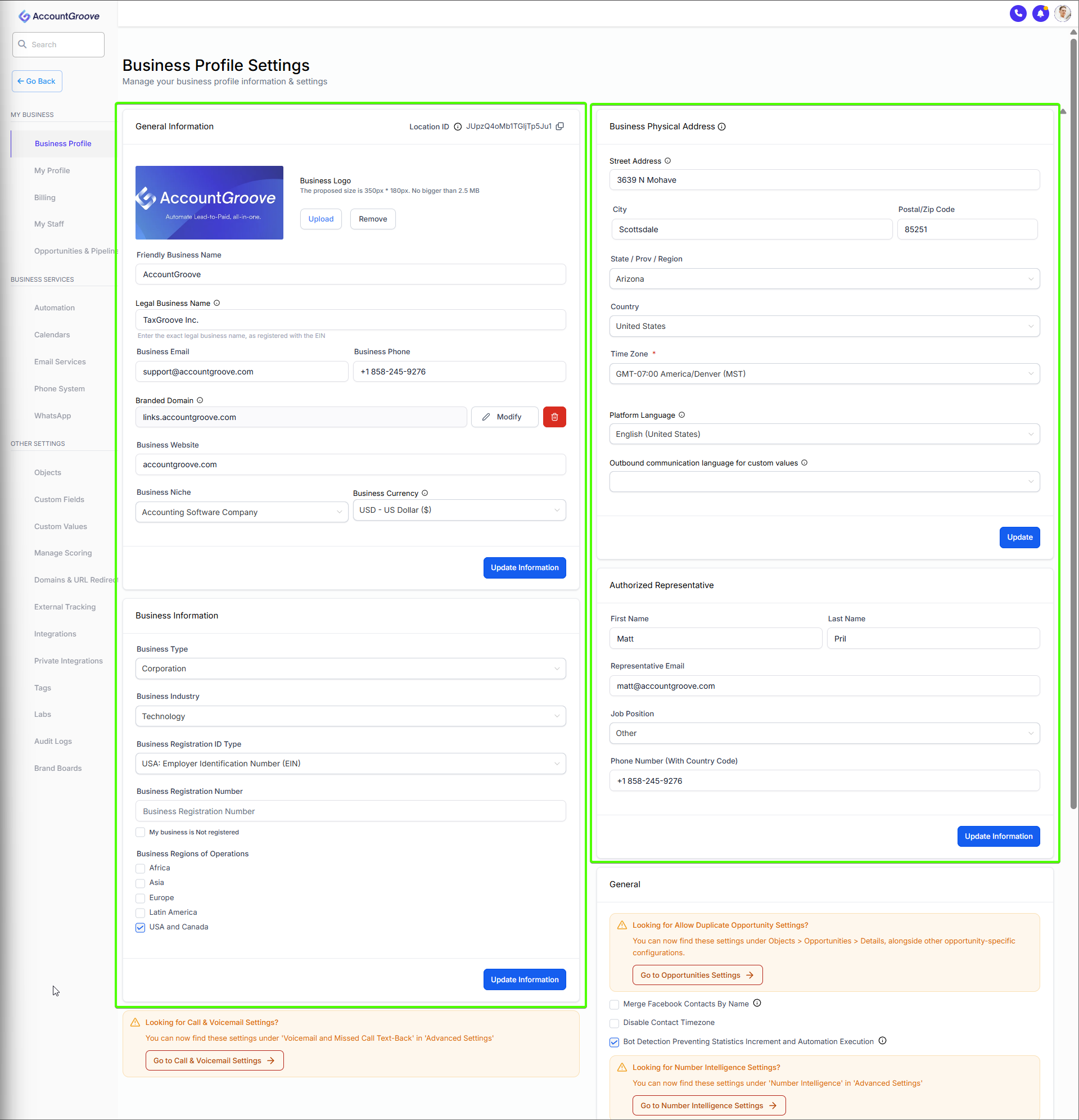
Complete Your Business Profile
Fill out all required fields, including:
- Legal business name
- Business address
- Country and time zone
- Business phone number
- Website
- Currency and language
Click Update Information once completed.
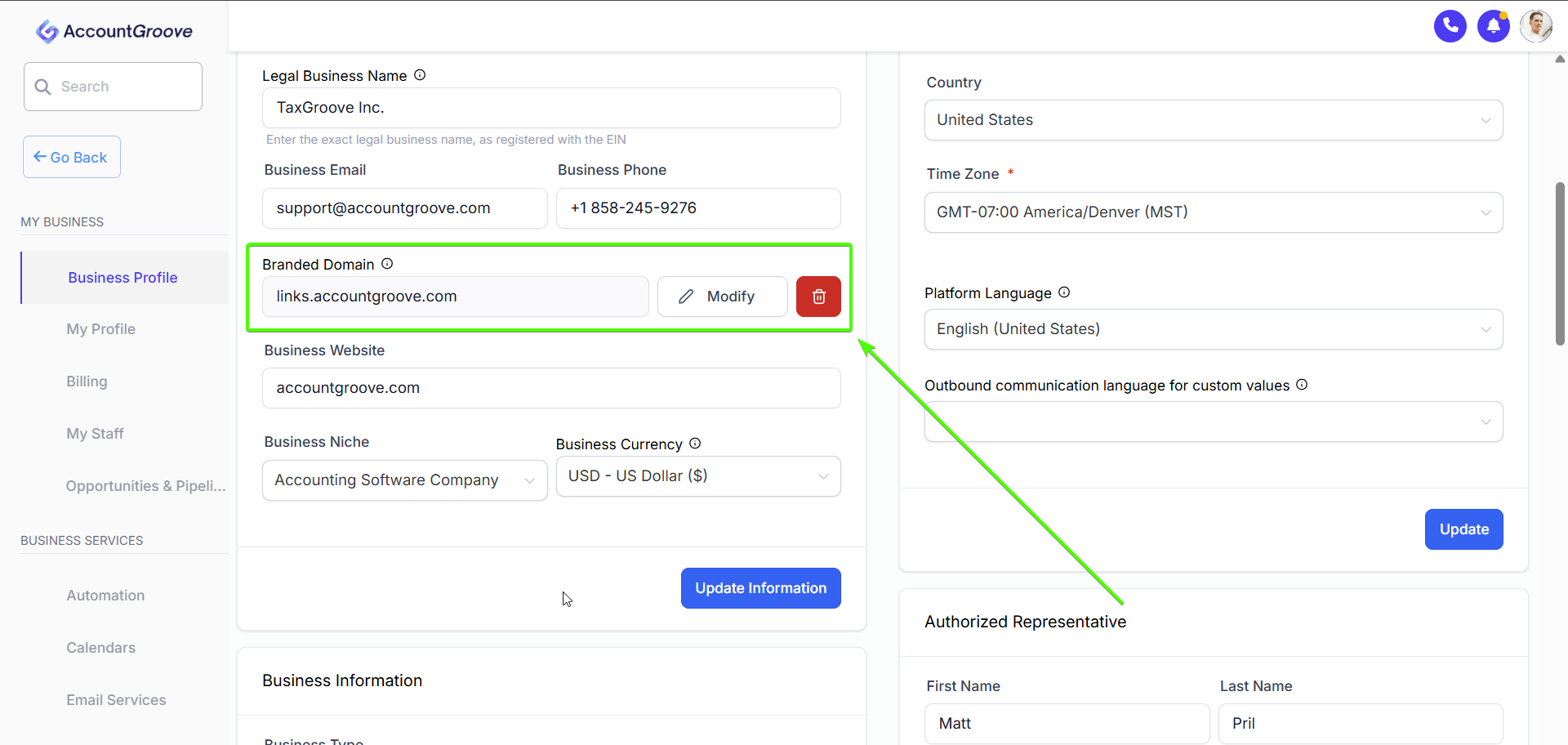
Branded Domain Setup
Your branded sending domain will be configured by the AccountGroove team during implementation.
What this means
- You do not need to change this setting yourself
- The branded domain is used to protect your primary domain while improving email deliverability
- Once configured, it will appear in your Business Profile
If you have questions about branded domains, contact the AccountGroove team support@accountgroove.com
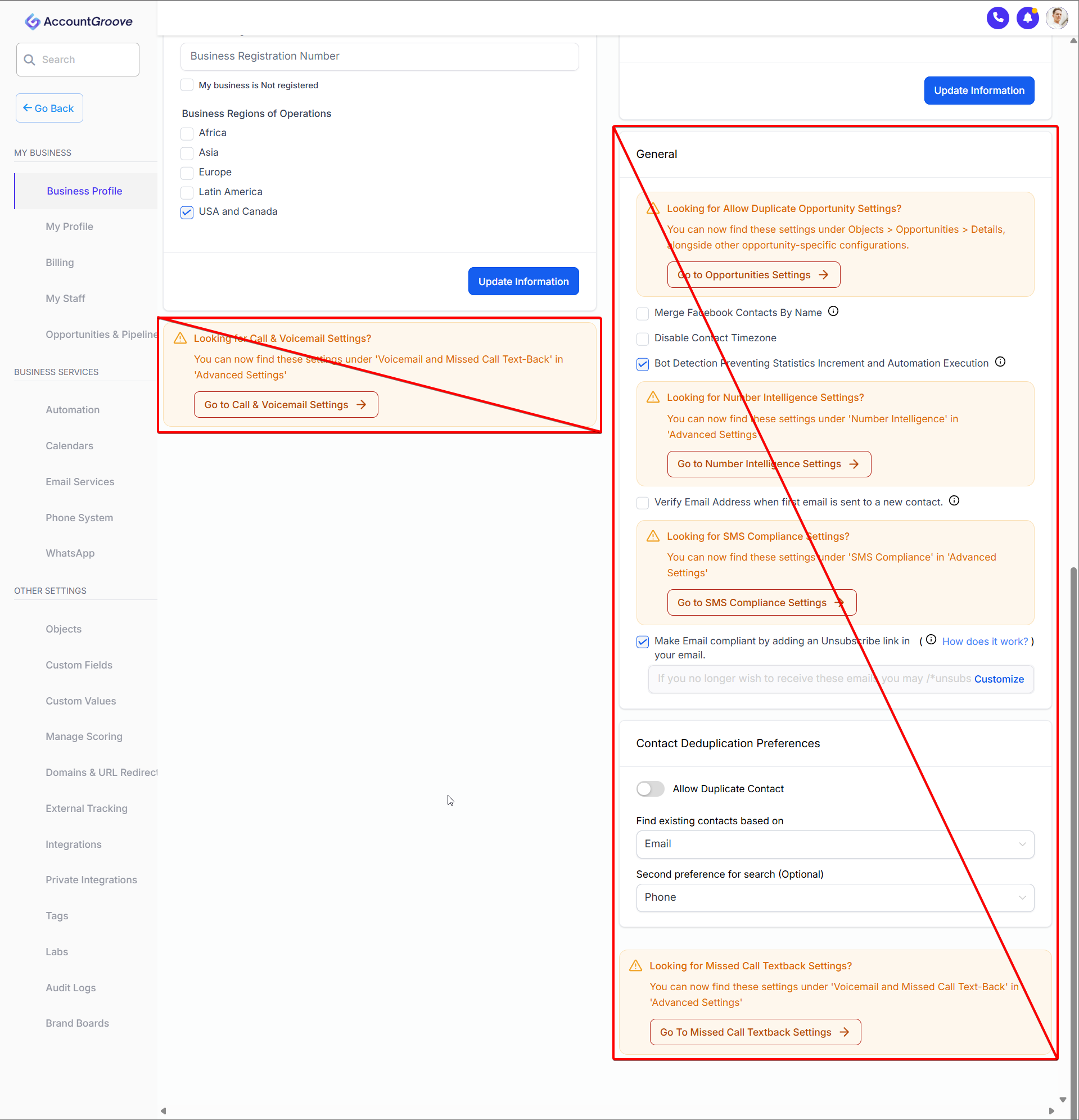
Settings You Can Disregard
Some settings shown in the Business Profile are not required for AccountGroove to function properly at this stage.
You can safely ignore the following:
- Opportunity-related warnings
- Phone system or call tracking alerts
- CRM or pipeline configuration notices
- Contact deduplication preferences
- Advanced compliance or automation notices
These warnings are part of the underlying platform and do not apply to AccountGroove’s standard setup.