.png)
Updating a Clients Payment Method
This guide walks you through how to update a client’s payment method in the system. Updating payment details ensures invoices are processed correctly and helps prevent failed or delayed payments.
Use this process when a client changes credit cards, updates billing information, or switches to a different payment method. Once updated, the new payment method will be used for all future invoices and scheduled charges.
Be sure to confirm the update with the client after saving changes to avoid any billing interruptions.
1. Click on Clients Tab on the left hand side.

2. Click on the "eye" to expand the full Client view

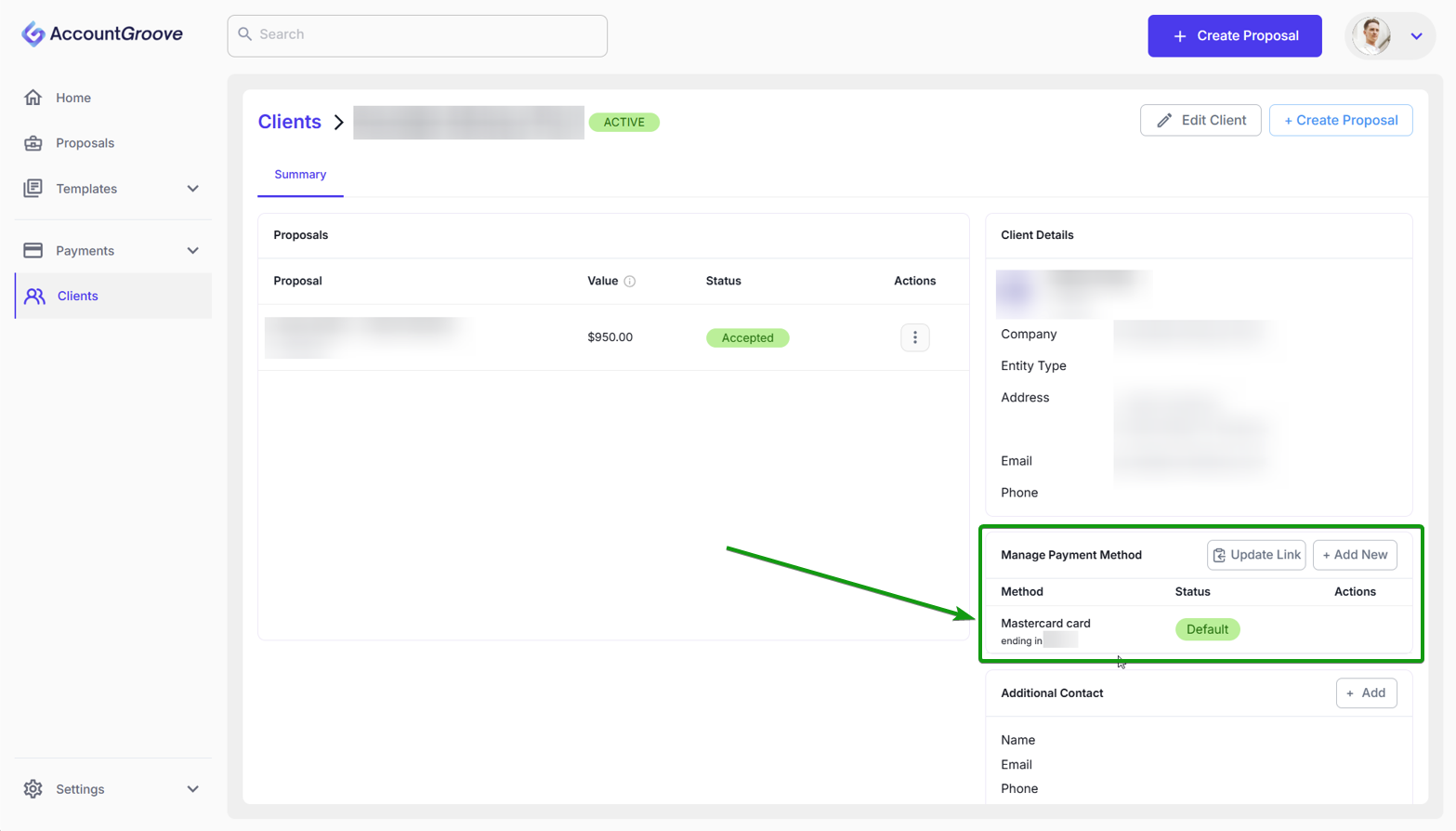
3. Click on Update Link to copy to your clip board

- Now that the link has been Copied you can Paste it directly into an email to send over to your client to update their payment method.
Preview: Here is a quick preview of the link and what the client will receive.
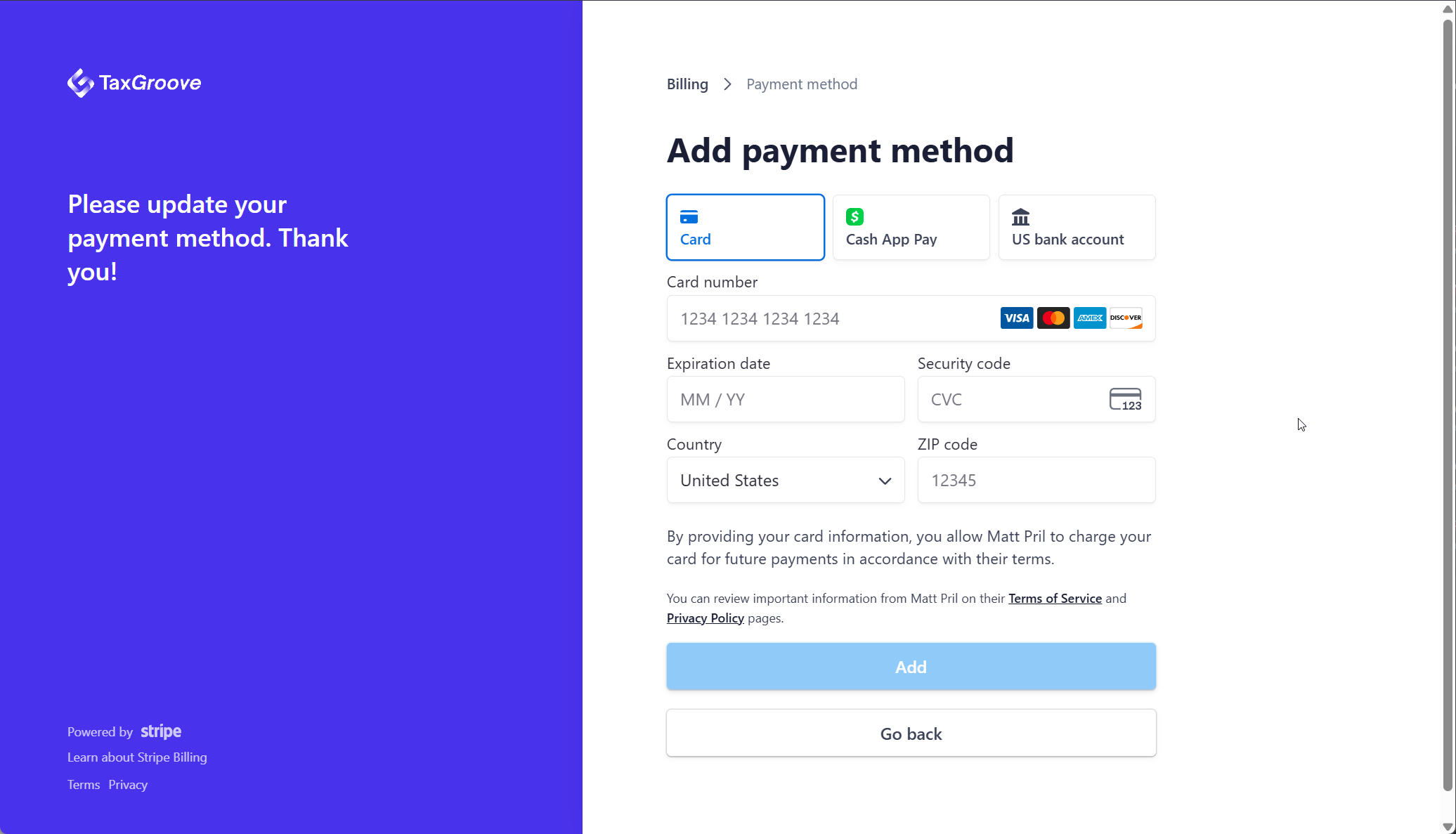
- Once updated you will see a Default payment method added to your client profile.
Note: Some financial institutions may charge a 0.4% verification fee on the first payment to confirm the payment method for fraud and security prevention. This fee will appear as a Stripe fee on the payout. All subsequent recurring payments will not incur this fee.