.png)
Create a Form in the CRM to Capture / Route Leads
Forms inside the CRM are one of the most effective ways to capture lead details and route them to the right place, whether that means enrolling them in a nurture campaign, qualifying them for follow-up, or directing them straight to your calendar.
This article walks through how to use and customize a basic Contact Us form in the AccountGroove CRM.
Accessing the Contact Us Form
To get started:
- Navigate to Websites → Forms
- Select the Contact Us form
This opens a standard prebuilt form that includes common fields such as:
- First Name
- Last Name
- Phone
- Message
This form is fully customizable and can be adapted to match your business needs.

Customizing Form Fields
Adding and Editing Fields
On the left-hand side, you’ll see Form Elements. These include:
- Quick add fields like First Name, Last Name, Email, and Phone
- Custom text fields for collecting additional information
You can drag any field into the form and edit it. For example, you may want to add a custom field to capture information about a prior tax year or other client-specific details.
Once added, this information will be captured and stored with the contact record.
Using Dropdowns for Lead Qualification
Dropdown fields are especially useful for filtering and qualifying leads.
For example, you can:
-
Add a single/multi - select dropdown
Label it something like “Last Year’s Revenue”
Add options such as:
- $0–$100,000
- $101,000–$500,000
- $500,000–$1,000,000
- $1,000,000+
These selections can later be used to trigger automations, route leads, or segment contacts inside the CRM.

Styling the Form to Match Your Website
On the right-hand side of the form editor, you’ll find Style and Options settings. From here, you can customize:
- Width and height
- Margins and padding
- Background colors or images
- Borders, border styles, and colors
These options allow the form to visually match your website so it feels native rather than embedded.
If you’re not comfortable adjusting design settings, any web designer maintaining your site can easily assist with this.
Note: You may need to click on Preview to see the style updates you have made to you form:
Important: If you use the provided templates, such as the Contact Us form (on your website), they will automatically populate with the values you entered in your Custom Values settings. For example the color of the button will automatically use the HEX value you provided.
To learn more click on the Custom Values help doc:

Button Styling Panel

The Button Styling Panel centralizes all button appearance controls so you can apply polished, consistent styles without custom code. Use presets to start fast, then fine-tune typography, spacing, borders, radius, shadows, and width.
Note: Prior button controls now appear under grouped sections in this panel for easier styling and faster updates.
Open the Button Styling Panel
-
Open a Form in the builder.
- Click the button element on the canvas.
- In the right sidebar, expand Button (or Styles → Button) .
Choose a Button Theme (Gallery + Preview)
- Click Select Themes (Needs Confirmation: exact label).
- Browse Filled, Border, and Text Only categories.
- Hover or select a theme to preview changes live on the canvas.
- Click Apply to set the theme on the selected button.
Customize Button Styles (Grouped Controls)

Purpose: Fine-tune the theme to match brand standards without CSS.
- Colors & Background: Set text, background, and border colors.
- Typography: Choose font family and weight (supports custom fonts). Set size, letter spacing, and text transform.
-
- Layout & Alignment: Align the button Left / Center / Right. Toggle Full Width to span the container.
-
- Padding: Adjust top/bottom and left/right padding (link/unlink values).
- Border & Corner Radius: Set border width and style. Adjust corner radius for rounded vs. square buttons.
-
- Shadow: Enable shadow, then adjust blur/distance/spread.
- Reset or Revert
- Click Reset or Revert to undo style changes. Reopen Select Themes to pick a different starting point.


Advanced Tab

The Advanced tab provides extra options for specialized needs beyond core layout and theme controls. Use it when you need deeper fine‑tuning while keeping the form maintainable. Control types within the Advanced tab include:
- Form: Adjust the form container’s borders, corners, and shadow
- Input Field: Style the input elements themselves, including text and focus colors, borders and corners, width, padding, and shadows
- Label: Control label typography and color
- Short Label: Configure short‑label typography and color
- Placeholder: Customize placeholder text appearance
- Custom CSS: Add custom CSS for precise control.
Element-Level Label Alignment
- Element-level label alignment lets you set a different label position for each field, instead of applying one global alignment to the whole form or survey. Use it to fine‑tune visual rhythm and spacing, especially in compact layouts.
-
Here is what you need to know before using Element-Level Label Alignment:
- Available in Forms, Surveys, and Quizzes (only available for forms with the Single Column layout)
- Existing forms retain their global alignment unless explicitly updated at the field level
- Applies to standard fields such as text inputs, drop downs, radios, and more
- On mobile, alignment automatically defaults to Top, ensuring a clear, user-friendly layout regardless of desktop settings
-
How to set Element-Level Label Alignment
- In the Form or Survey Builder, select a single field
- In the right sidebar that pops up, locate Label Alignment
- From here, select the desired label alignment for that element using the Arrows (Top, Left, Right or Form Default)

Configuring Form Submission Settings
Under Settings, you can control what happens after a form is submitted.
Options include:
- Displaying a confirmation message
- Redirecting users to another page on your website
- Redirecting to a custom URL
This is useful for thank-you pages, next steps, or scheduling flows.
Viewing Form Submissions
Under the Submissions section, you can:
- View who submitted the form
- See submission details
- Track when and where submissions occurred
This provides visibility into lead activity and form performance.

Important: Before completing this final step, make sure to update and publish your automation 1.01 New Inbound Lead --> Follow-up To Schedule Call to properly route and book leads into calls. See here:
Embedding and Sharing Your Form
Note: Embedding a form may require technical expertise. If you are unsure, please reach out to your web or technical team for assistance.
Embedding on Your Website
To embed the form directly on your website:
- Use the Embed Code provided
- Paste it into an embed or HTML field on your site
The default embed settings are recommended for most use cases.
Using Pop-Ups (Optional)
If you want the form to appear as a pop-up, you can configure trigger types such as:
- Scroll percentage (for example, after a visitor scrolls 5–20% of the page)
- Time on page (for example, after 5–10 seconds)
These settings help increase visibility and conversions when used thoughtfully.
Sharing the Form Link
Under the Share section, you can copy a direct link to the form. This link can be used in:
- Social media posts
- Emails
- Any platform that supports links
This allows leads to submit their information without visiting your website.

How to Embed Forms into Modern Web Builders:
Now that you’ve obtained the embed code for your pop-up form, let’s walk through the steps to seamlessly integrate it into your website. We’ve outlined detailed instructions for the most popular website builders.
Squarespace
Squarespace allows adding custom code through its code injection tool, enabling easy embedding of different types of forms. Let's understand each step in details :
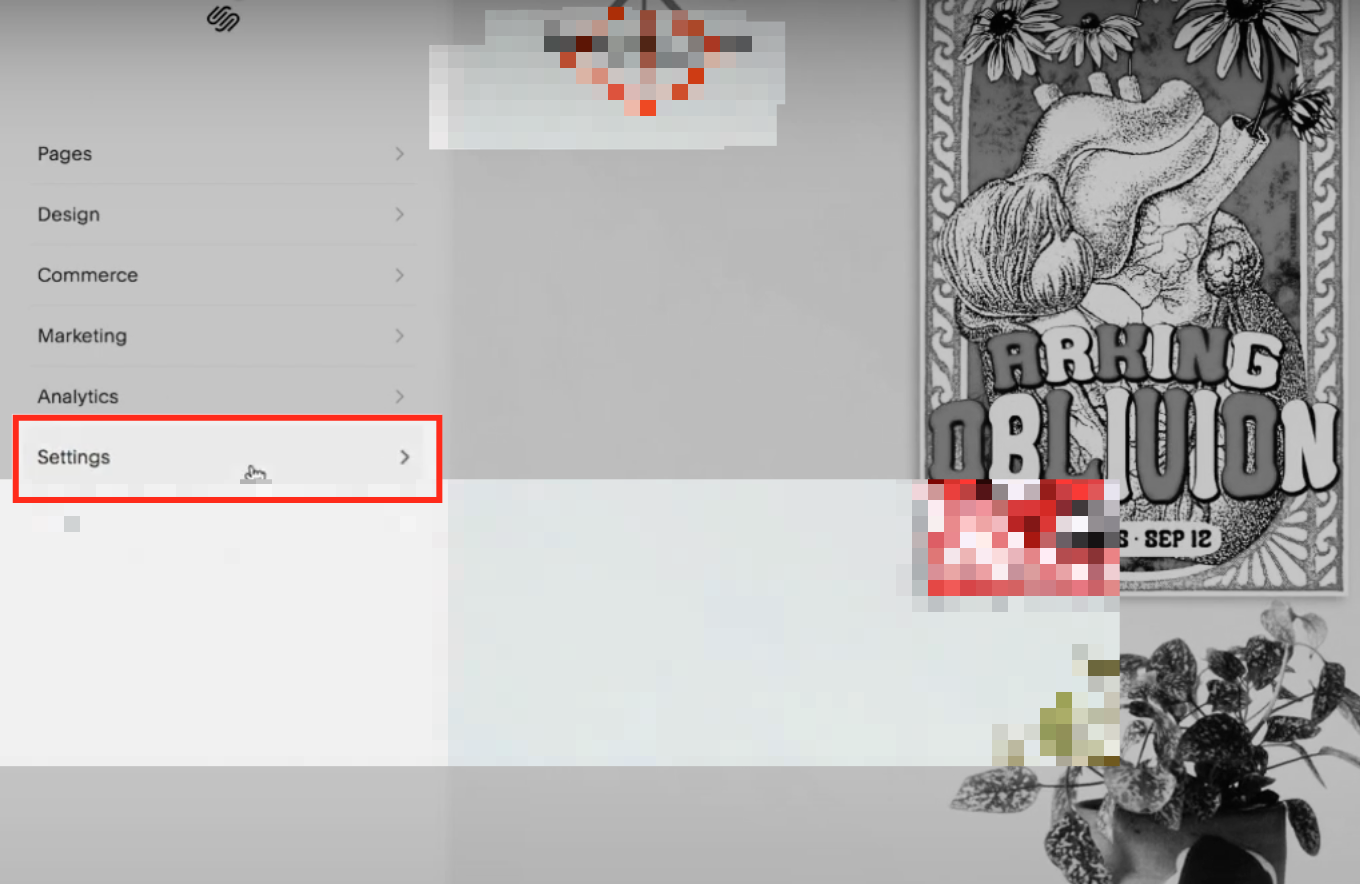
Access Settings
Start by logging in to your website builder account and navigating to the Settings menu in your dashboard.
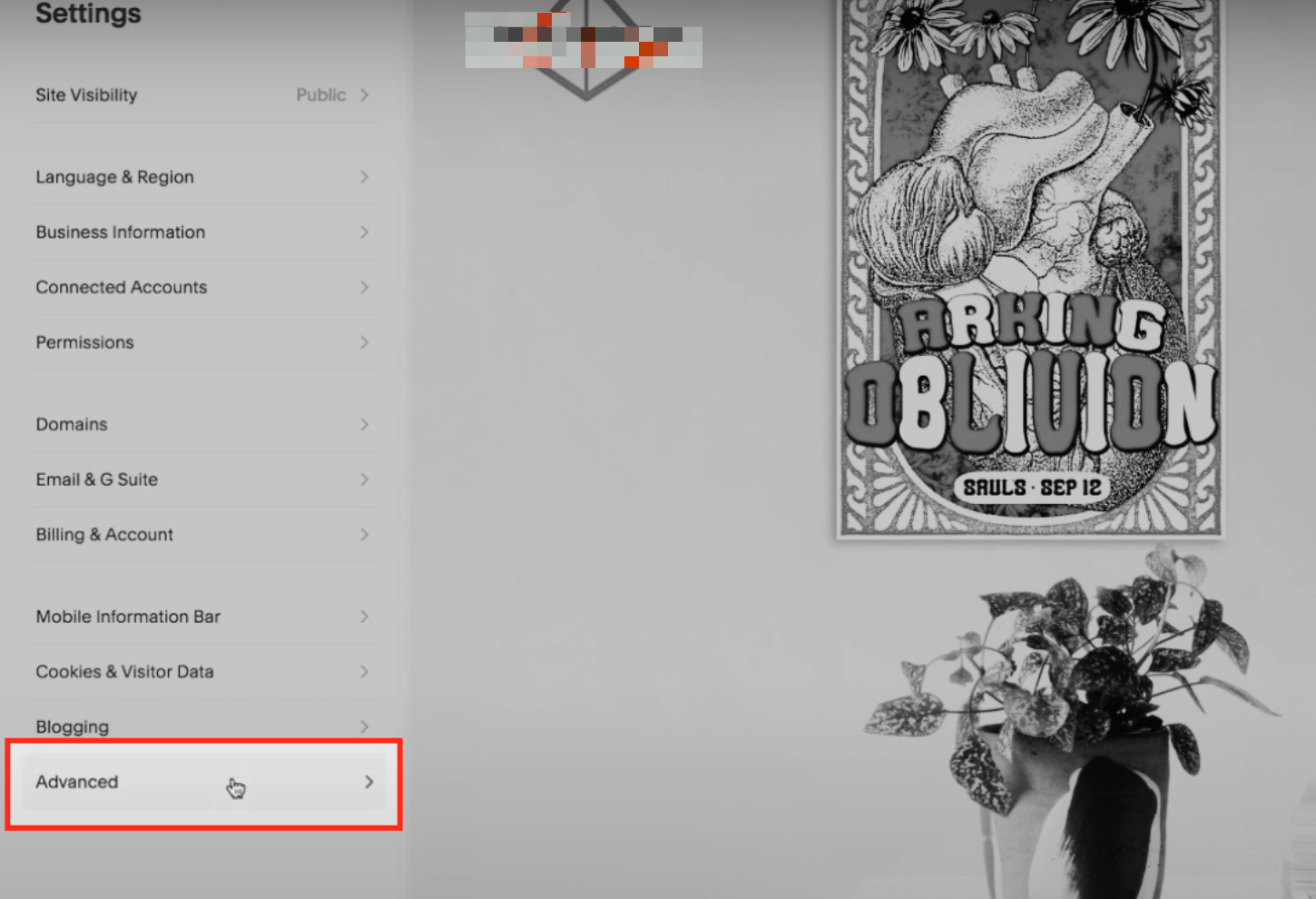
Click Advanced
Within the Settings menu, look for the Advanced option. Click on it to access additional customization features.
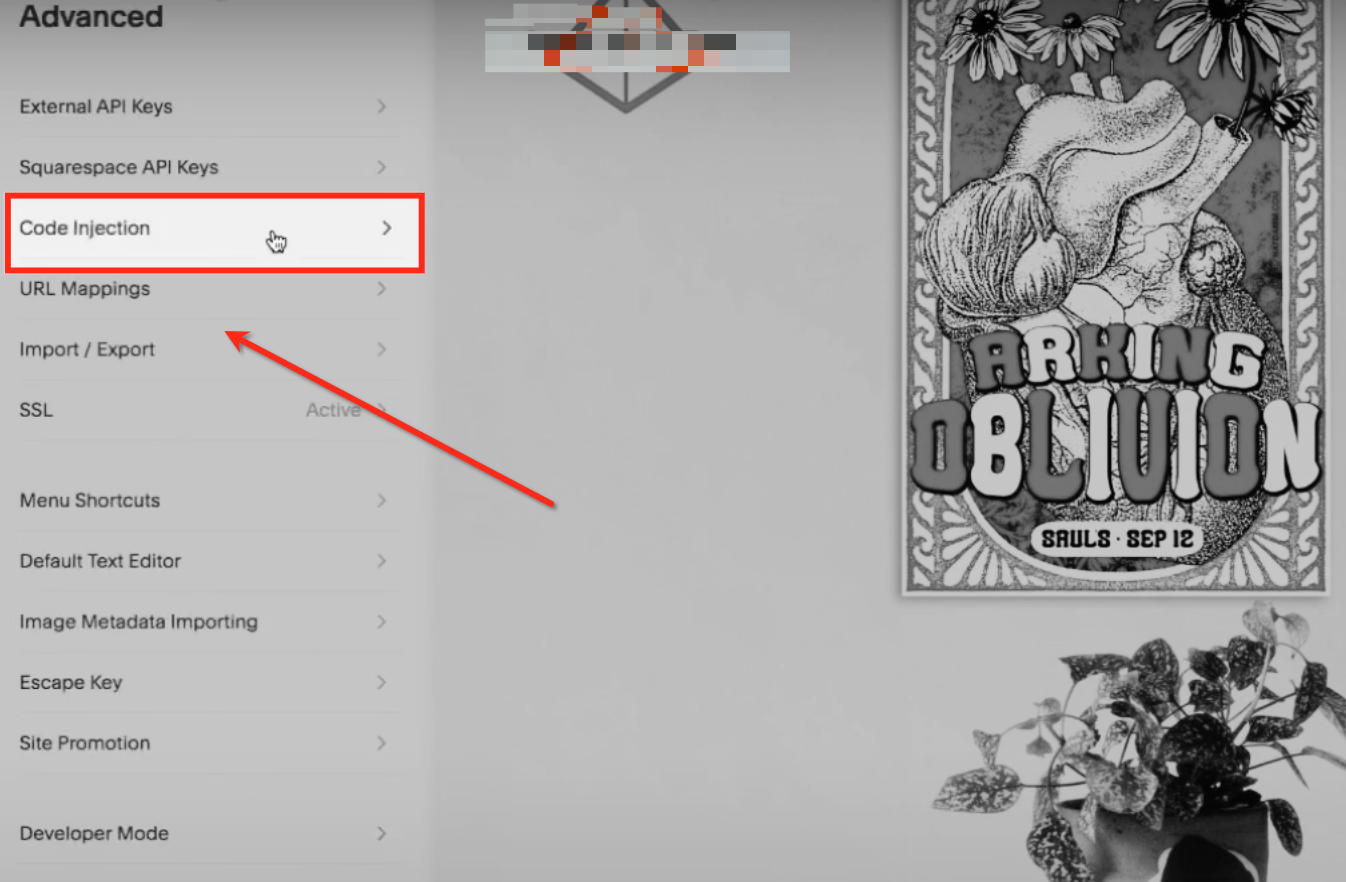
Select Code Injection
In the Advanced settings, locate the tab labeled as “Code Injection.”
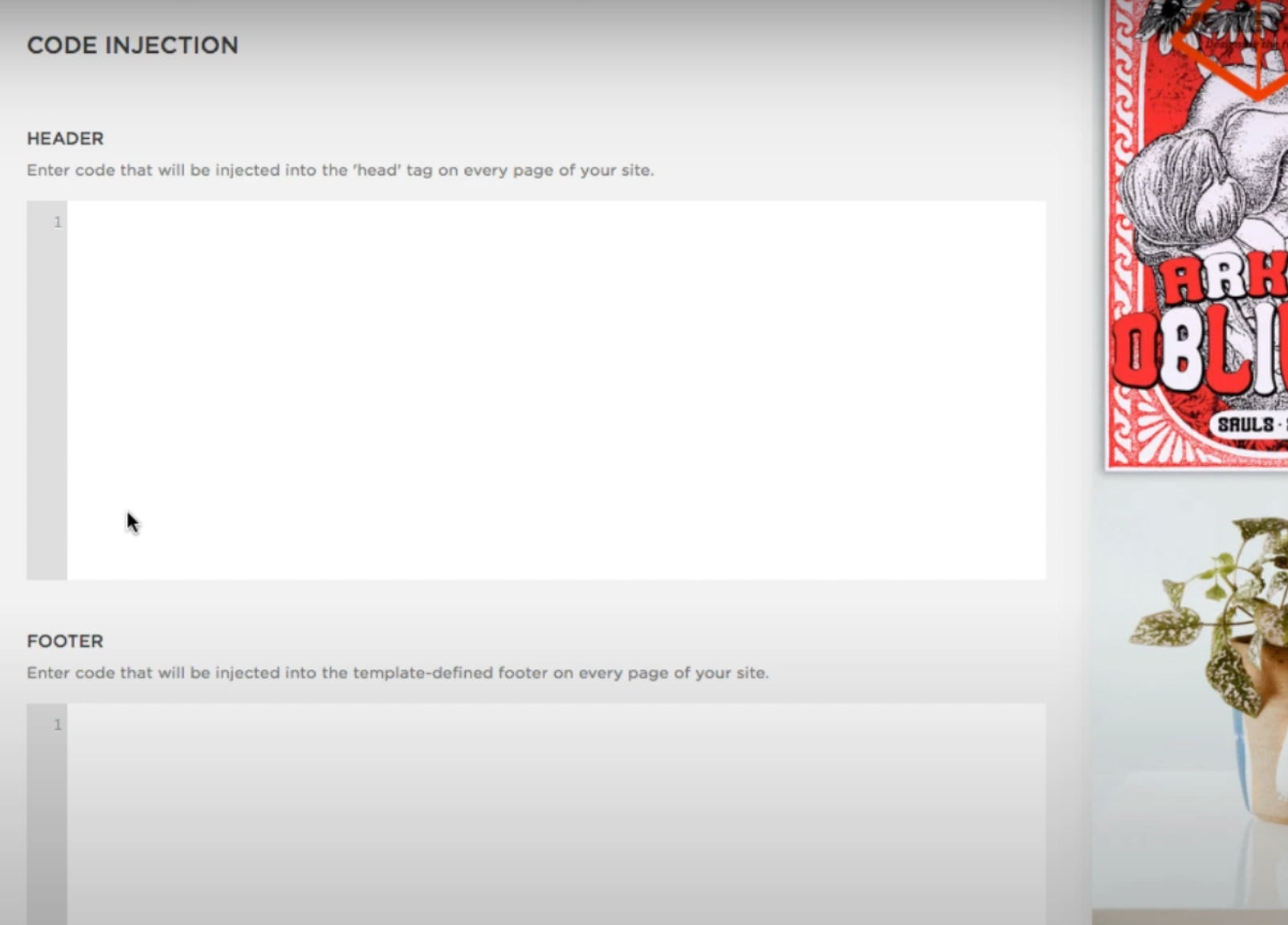
Add the Embed Code
Decide where to add the embed code:
To display the form across all pages, paste the code into the Header or Footer section of the Code Injection panel.
Save and Publish
Once the code is added, click Save in the Code Injection panel or the Per-Page Code Injection field.
Publish your website to apply the changes.
Wix Integration
Wix Website Builder Options
- Click the "+" button to find the embed option.
- Click Embed option.
- Select the Embed a Widget option.
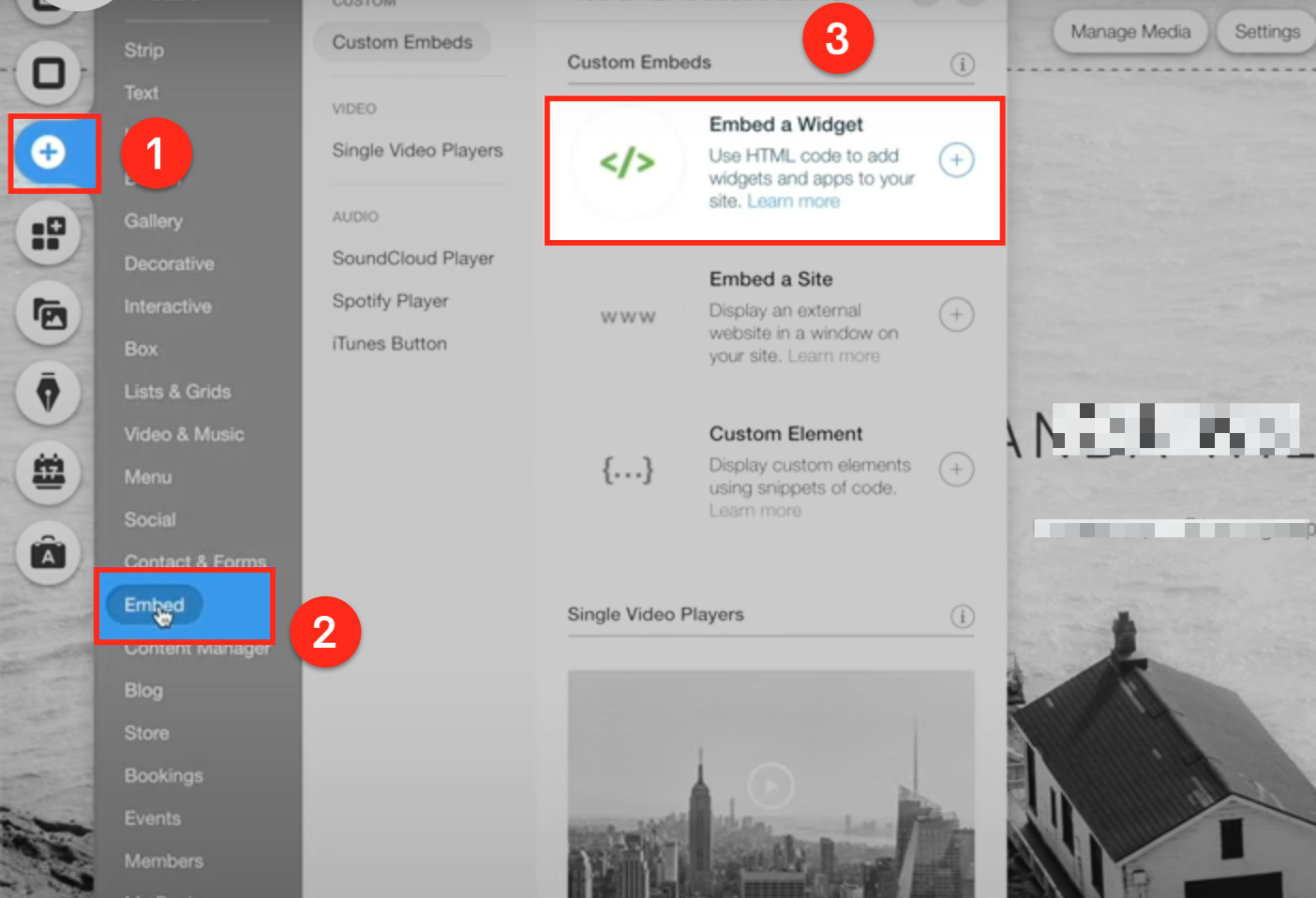
Paste the Code in Wix Editor
Select Code option. Paste the embed script and click Update option to save your changes.
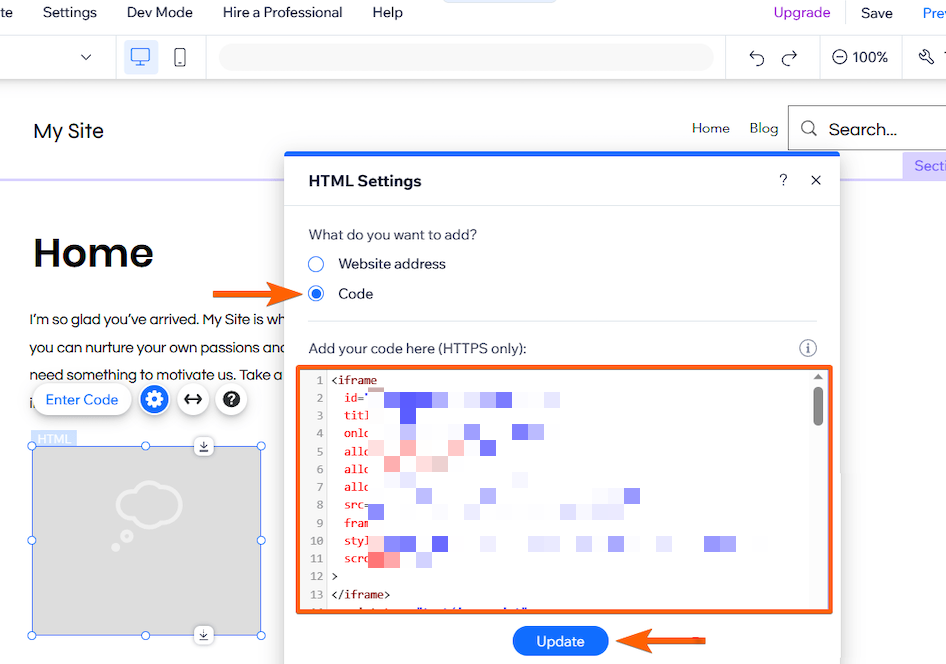
Publish Your Website
Preview the site to confirm the form appears correctly. Once confirmed, publish your Wix website.
WordPress Integration
WordPress supports embedding scripts via plugins or theme settings, making it versatile for adding pop-up forms.
Access the Editor
To begin, navigate to the Pages section in your website’s admin dashboard. This is where you can manage your site’s visual settings and design elements. To get into the editor mode, hover over the page where you wish to embed your HighLevel form and click the Edit button
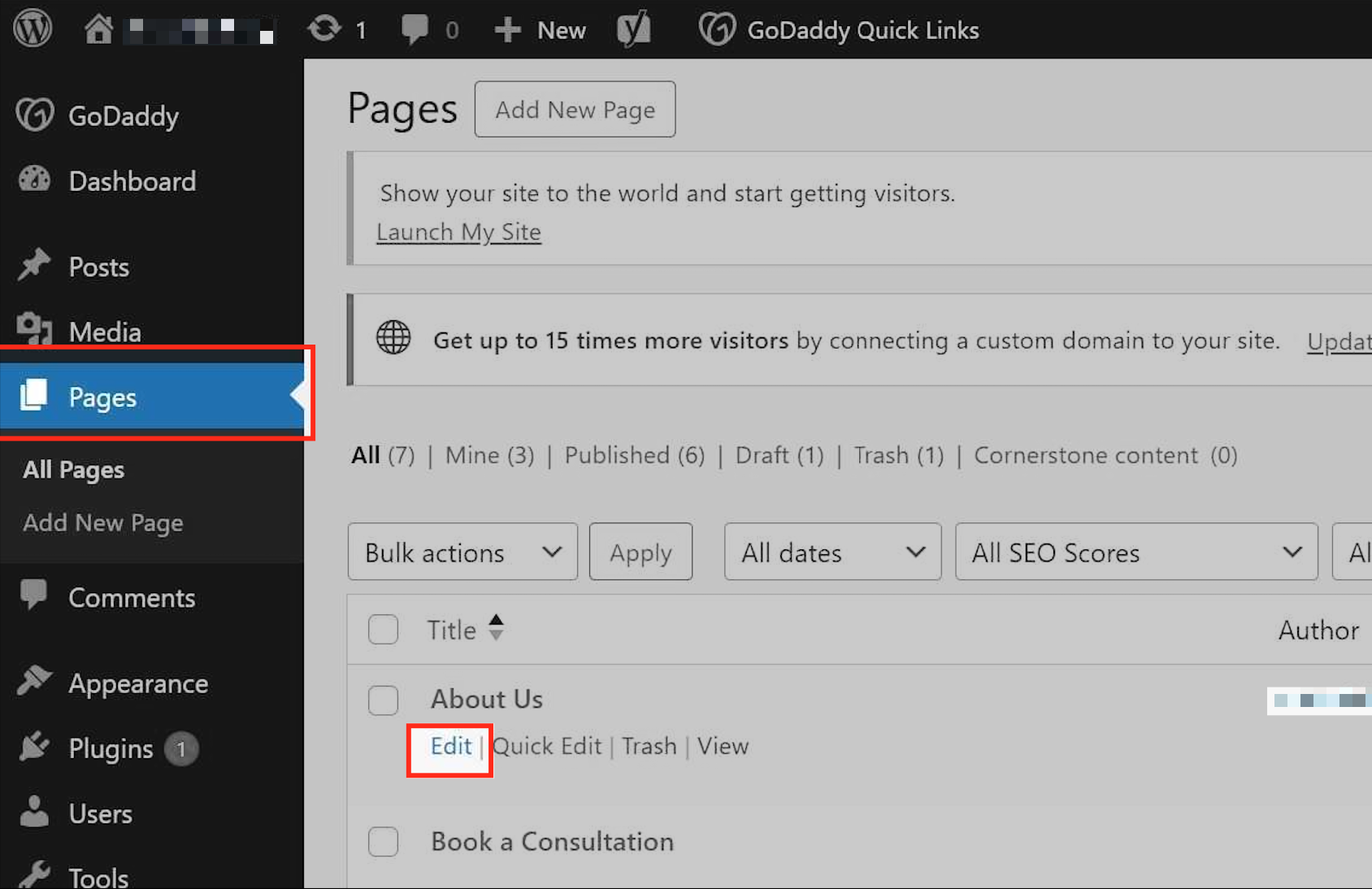
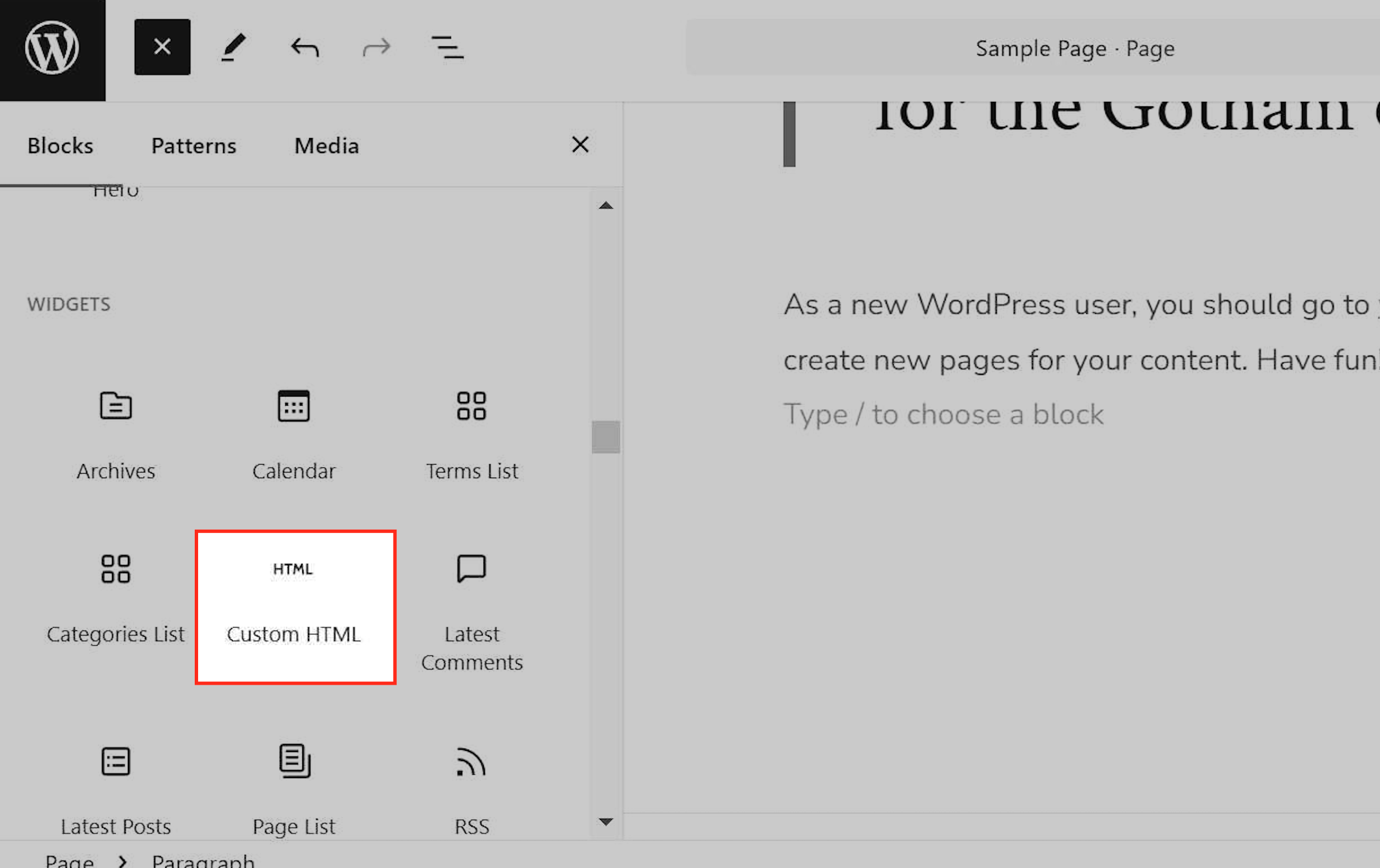
Open the Block Menu
Click the ”+” icon in the editor to reveal the list of available blocks for customizing your page.
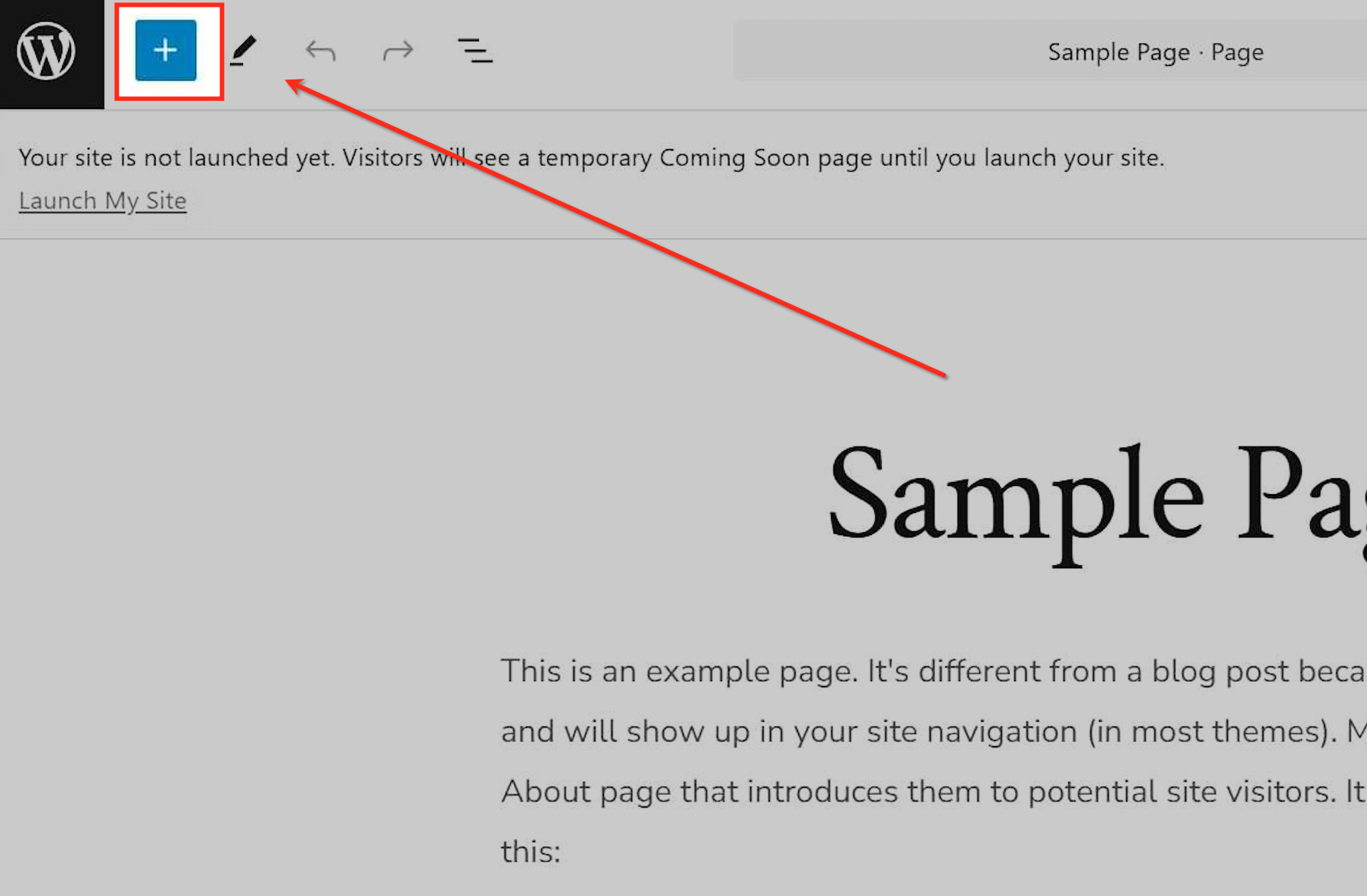
Select the Custom HTML Block
Scroll down and select the Custom HTML option to insert your own code into the page layout.
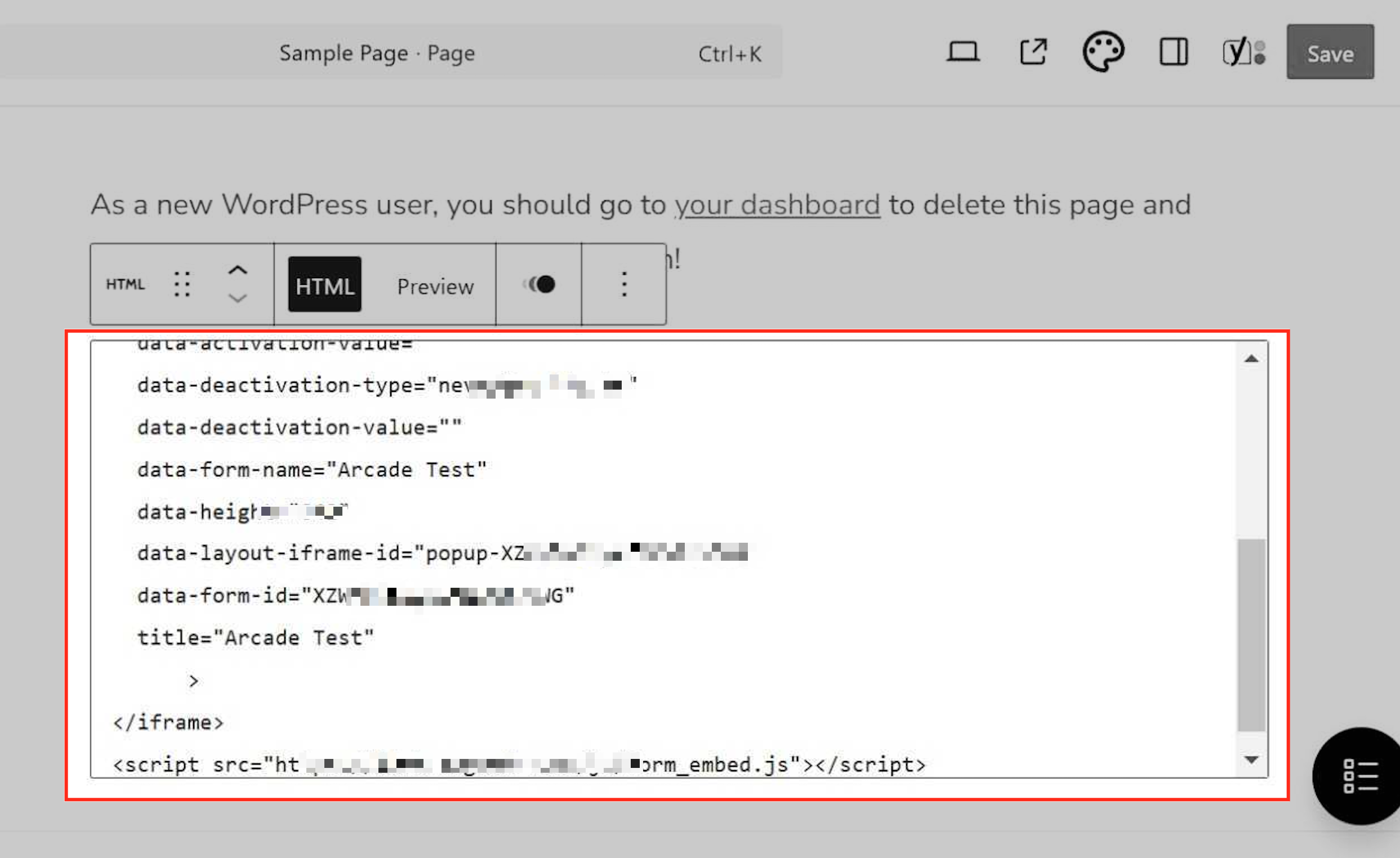
Inserting the Embed Code
Paste the embed code into the appropriate section within the selected file. Ensure it’s placed correctly between the <head> or <footer> tags for proper functionality. Save your changes once done.
Update and Test
Save changes and refresh your website to verify the form appears correctly.
Duda Integration
Duda offers a built-in widget for custom code, allowing you to easily add forms.
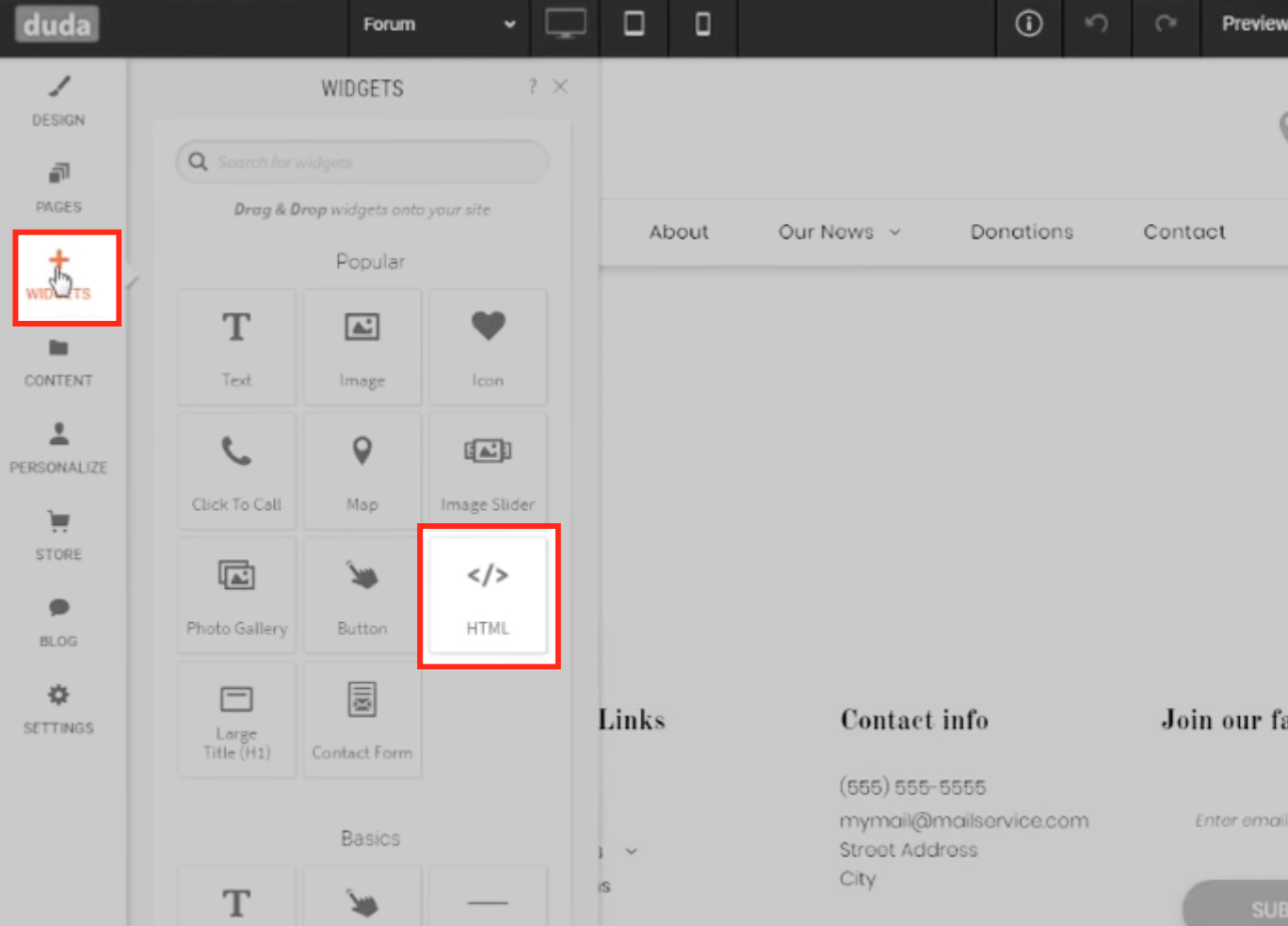
Add a Custom Widget
Open the Duda editor and navigate to the page where you want the pop-up form.
Select Widgets > HTML Widget and drag it onto the page.
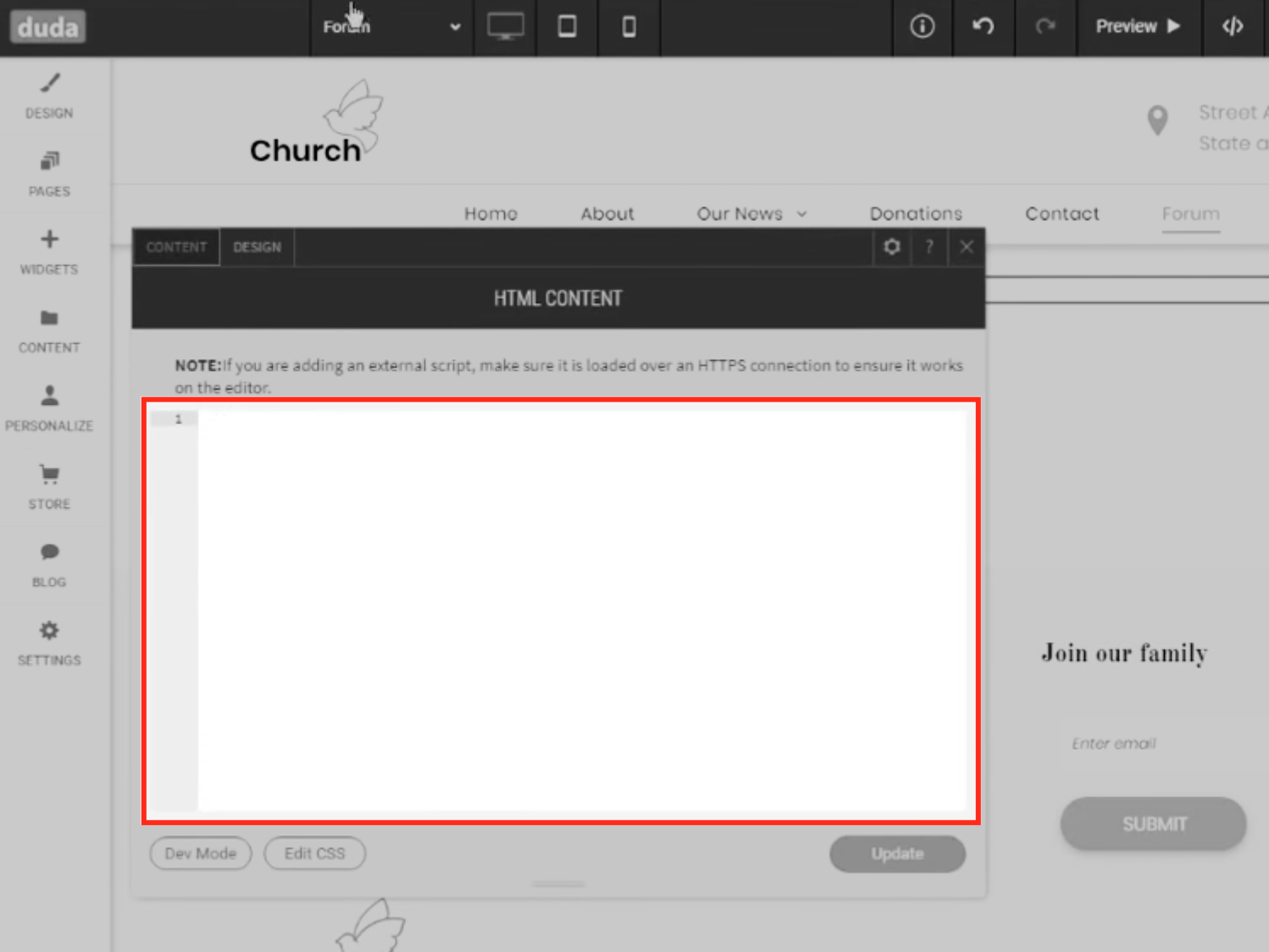
Paste Embed Code
Paste the script into the HTML widget and position it as needed.
Save and Publish: After adding the embed code, save your changes in the appropriate section of your website settings. Ensure the changes are published or made live to apply the updates.
Test your website: Open your website in a browser to verify that the embedded pop-up form displays and functions as intended.
If the form doesn’t appear:
Review the embed code for any errors or omissions during the copy-paste process.
Make sure the code is placed in the correct section for it to load properly.